 Muffle
How to stop apps from changing your mic volume on a Mac
Many call apps adjust your input level on their own, a feature called automatic gain control. You set a good level in System Settings, join a Google Meet call, and a few minutes later the slider has moved and people say you sound quiet or distorted.
Muffle can lock your mic level. When any app changes it, Muffle puts it back right away.
Try Muffle free for 3 daysComing soon to the Mac App Store
Lock your mic level
- Install Muffle.
- Click the Muffle icon in the menu bar and set your level with the mic slider.
- Click the lock next to the slider.
- Join your calls. Your level stays where you set it.
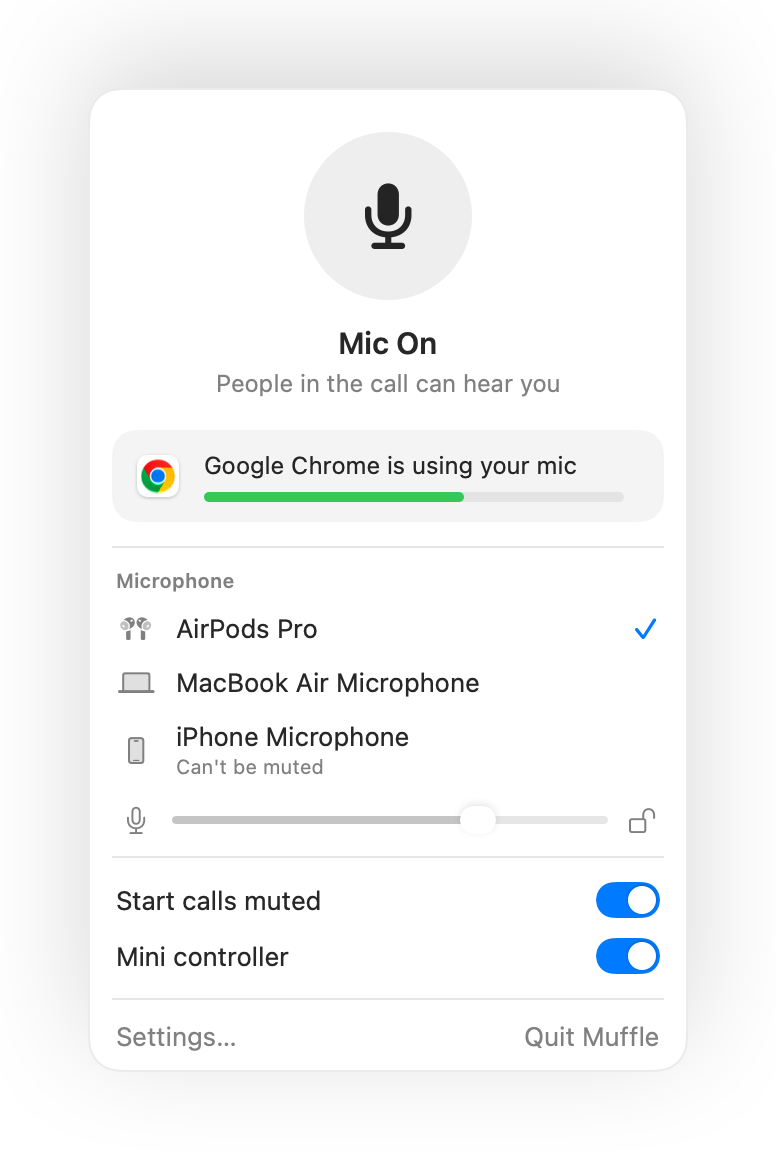
- Muffle warns you in the panel when your level is too low during a call.
- The lock remembers a level for each microphone, so your AirPods and your Mac's mic each keep their own.
Questions
Why does my Mac mic volume keep changing?
Apps like Chrome, Zoom and Teams use automatic gain control and change the system input level while you talk.
Can I still change the level myself?
Yes. Use the slider in the Muffle panel; it updates the locked level.