 Muffle
How to mute Zoom with AirPods or a shortcut on a Mac
Zoom's own shortcut, Command-Shift-A, only works while Zoom is the app in front. When you're taking notes or sharing another window, finding the mute button costs you a few awkward seconds.
Muffle gives you one mute control for Zoom and every other app: your AirPods, a global shortcut, or the menu bar. It mutes the microphone itself, so it works in the Zoom app and in Zoom calls in the browser.
Try Muffle free for 3 daysComing soon to the Mac App Store
Mute Zoom from anywhere
- Install Muffle and allow microphone access.
- Join your Zoom meeting as usual.
- Press your AirPods stem or Control-Option-M to mute, from any app.
- Hold Control-Option-M while muted to talk, and let go to mute again.
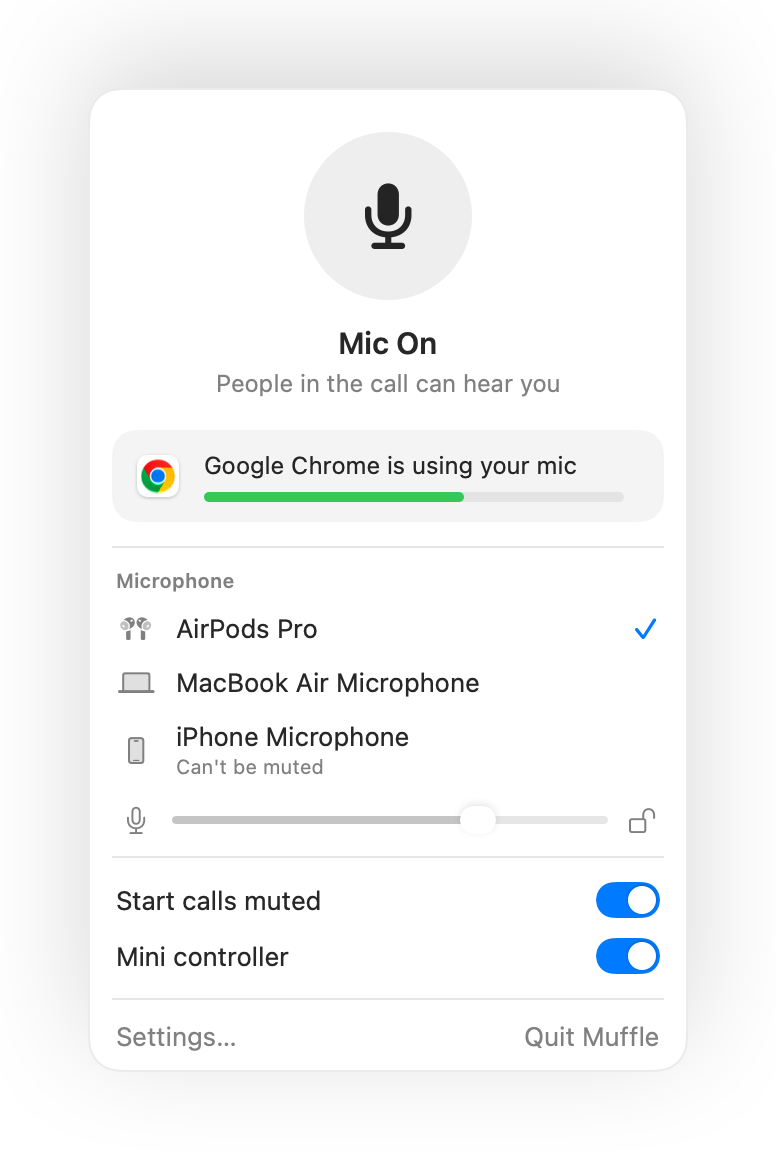
- If Zoom takes the AirPods press itself on your Mac, the shortcut and the menu bar still mute you through Muffle.
- Zoom may show you as unmuted while Muffle has the mic off. Participants hear silence.
Questions
Does Muffle replace Zoom's mute button?
It works alongside it. Muffle turns off the microphone for every app, so you can mute Zoom without switching to it.
Can I use push to talk in Zoom?
Yes. While muted, hold the Muffle shortcut to talk. This works in Zoom and in every other app.