 Muffle
How to mute Google Meet with AirPods on a Mac
On an iPhone, pressing your AirPods stem mutes a call. On a Mac, Google Meet runs in Chrome, and Chrome doesn't pass that press to web pages. You press, hear an error chime, and Meet keeps sending your voice.
Muffle fixes this for every Meet call. It receives the AirPods press itself and mutes your Mac's microphone, so Meet hears silence even when the tab is in the background.
Try Muffle free for 3 daysComing soon to the Mac App Store
Mute Google Meet with your AirPods
- Install Muffle and allow microphone access when asked.
- Join your Google Meet call in Chrome, Safari, Arc or Edge.
- Press the AirPods stem once to mute. The Muffle icon turns red.
- Press again to unmute. You can also press Control-Option-M from any app.
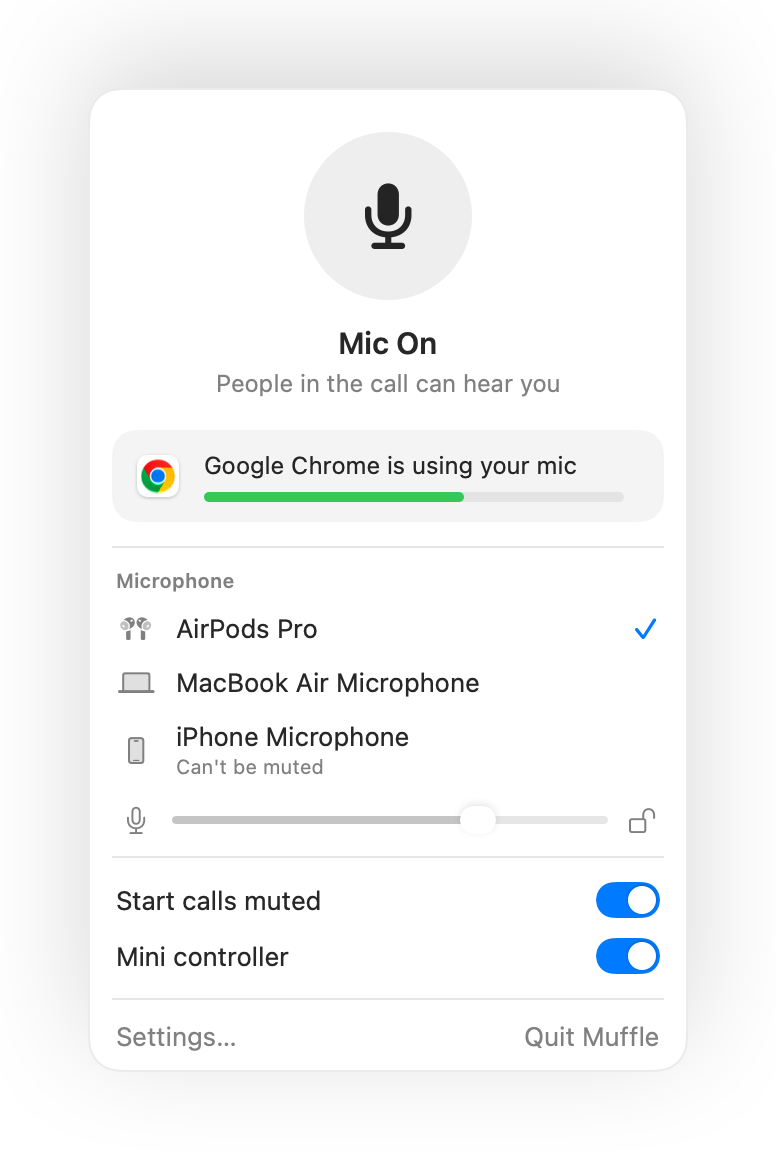
- Meet may still show your mic as on, because Muffle mutes the microphone rather than Meet's button. Everyone hears silence while the Muffle icon is red.
- Turn on “Start every call muted” to join every Meet call muted.
Questions
Why doesn't my AirPods press mute Google Meet?
Chrome doesn't support the macOS AirPods mute gesture for web calls, so macOS has no app to send the press to. Muffle becomes that app.
Isn't Meet's own shortcut enough?
Meet's Command-D shortcut only works while the Meet tab is in front. Muffle's shortcut and AirPods press work from any app.