 Muffle
How to mute Microsoft Teams with AirPods on a Mac
The Teams shortcut, Command-Shift-M, works only when the Teams window is active. In a meeting you're usually somewhere else: a document, a browser, a shared screen.
Muffle mutes your microphone from anywhere, in the Teams app and in Teams on the web. Press your AirPods, press one shortcut, or click the menu bar.
Try Muffle free for 3 daysComing soon to the Mac App Store
Mute Teams from anywhere
- Install Muffle and allow microphone access.
- Join your Teams meeting.
- Press Control-Option-M or your AirPods stem to mute. The menu bar icon turns red.
- Press again to unmute, or hold the shortcut to talk while muted.
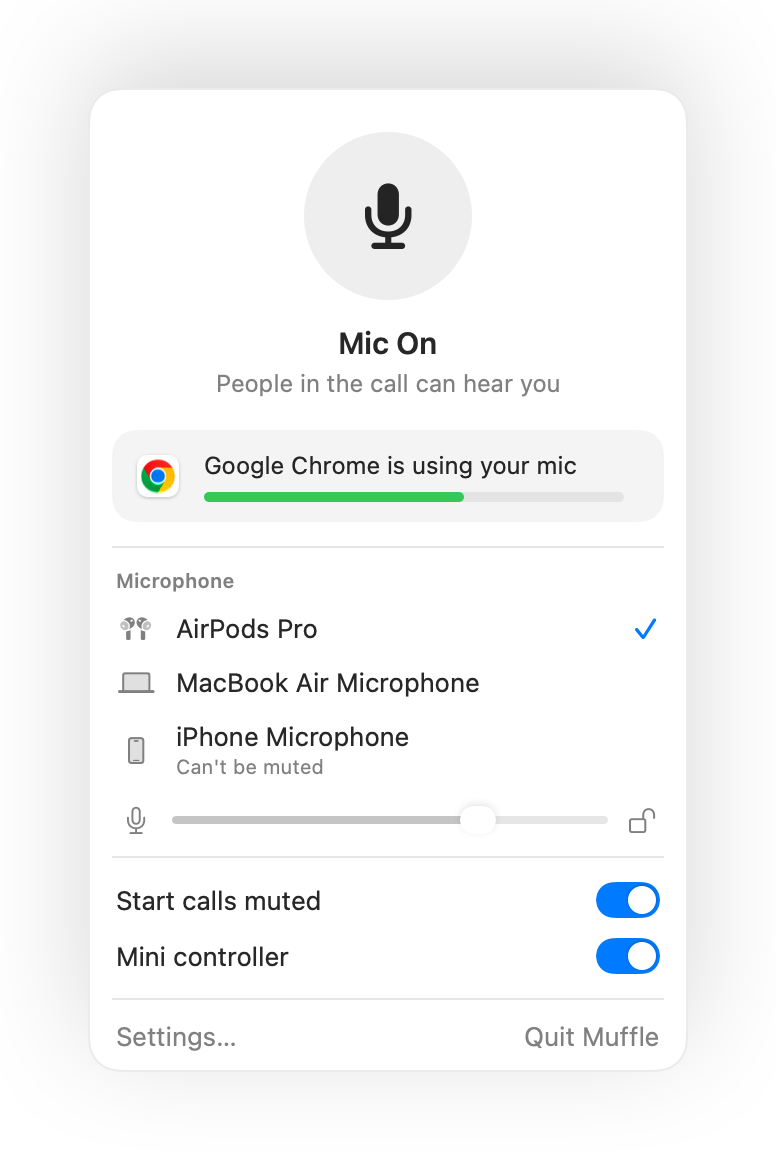
- Teams in a browser tab gets the same AirPods support as Google Meet through Muffle.
- Turn on “Mute when the screen locks” so stepping away never leaves your mic open.
Questions
Does the AirPods press work in the Teams app?
It depends on your Teams version, since Teams can take the press itself. Muffle's shortcut and menu bar button work in every case.
Will Teams show me as muted?
Not always. Muffle mutes the microphone, so Teams may still show the mic as on while everyone hears silence.